M.A.R.C.U.S.
Multiple Amazing Robot Code Usage Selector
M.A.R.C.U.S. is a reusable robot programming framework for FIRST LEGO League competitions. It runs directly on the LEGO SPIKE Prime hub and provides a menu-driven system for selecting and running multiple Pybricks programs during competition.
M.A.R.C.U.S. was created by Lucas Plaisted, a WCCA Robotics member who built an early version of the menu system during the 2024–25 Submerged season while competing on our FLL team, Marcus Bartholomew the Third Junior. Now on our FTC team, Lucas developed M.A.R.C.U.S. as a polished, reusable framework that any FLL team can use. Both of our FLL teams use it this season.
Features
Menu System
M.A.R.C.U.S. turns the hub buttons into a program selector — press left and right to browse, center to run. The hub’s display shows the current program number so you always know what’s selected. If you’ve previously used the SPIKE Prime software for programming, this will feel very familiar (though you’ll need to get used to the way Pybricks displays numbers in order to support two digits on the 5×5 display).
Works with Pybricks Block Programming
M.A.R.C.U.S. bridges the gap between block programming and multi-program management — something that’s been a challenge for FLL teams using Pybricks. You can create and test your mission programs using Pybricks block programming, then convert them to Python and run them with M.A.R.C.U.S. This gives teams the accessibility of block programming with the power of a full menu system for competition. You can also program directly in Python if you prefer.
One Button Launch
After a program finishes, M.A.R.C.U.S. automatically advances the selection to the next program. A single button press is all you need to launch it — helping your technicians get the robot running more quickly during competitions.
Celebration
When the last mission finishes, M.A.R.C.U.S. plays a celebration! It shows a blinking star on the display and plays the Super Mario Bros level completed tune.
Utilities
Press the Bluetooth button to enter or exit a utility menu with handy tools:
- Wheel cleaning — runs the wheels continuously, making it easier to clean them with a wipe
- Battery check — shows the percentage of battery remaining directly on the robot
- Celebration — demo the celebration animation
- Drive straight with gyro — great for demoing gyro functionality to judges during your robot design presentation. You can demonstrate how the robot corrects its heading if knocked off course.
Force Sensor Launch
If your hub is oriented such that the center button is difficult to reach, you can use a SPIKE Prime force sensor to launch the current program instead.
Robot Configuration
All hardware setup lives in one robot.py file — tire diameter, axle track, motor ports, directions, and optional sensors. When the physical robot changes, you only need to update one place.
How It Works
When you turn on the robot, M.A.R.C.U.S. displays a menu on the SPIKE Prime hub’s LED matrix. Use the left and right buttons to scroll through numbered mission programs, then press the center button to run the selected program.
Press center while a program is running to stop it safely. Press center + Bluetooth together to shut down the whole system.
Architecture
main_program.py      ← Entry point: registers programs and launches the menu
robot.py             ← Robot hardware config (motors, sensors, dimensions)
program1.py          ← Sample mission program (use as a template)
program2.py          ← Sample mission program (use as a template)
...
marcus/
  menu.py            ← Menu system and program runner
  buttons.py         ← Button input with edge/hold detection
  images.py          ← LED matrix sprite constants
  celebrate.py       ← Victory celebration animation
  clean_wheels.py    ← Wheel cleaning utility
  battery.py         ← Battery level check
  straight.py        ← Straight-driving demo
The root folder contains team-specific files that change each season — your mission programs and robot configuration. The marcus/ subfolder contains the reusable M.A.R.C.U.S. infrastructure that rarely needs editing.
Getting Started
- Copy the M.A.R.C.U.S. code into your project
- Install uv and run
uv syncfor type-checking support - Install VS Code with the Python and BlocklyPy extensions
- Update
robot.pyfor your robot’s hardware:- Set
TIRE_DIAMETERandAXLE_TRACK - Configure motor ports and directions
- Set
- Create your mission programs — copy
program1.pyorprogram2.pyas a template, name the file whatever you want (e.g., the name of the mission it solves), and edit the body of theRunfunction - Import your programs in
main_program.pyand add them to theprogramslist - Deploy to the hub using Pybricks firmware and the BlocklyPy extension — make sure
main_program.pyis the active document when you run (or open an individual program file to run it standalone without the menu)
Using Block Programming with M.A.R.C.U.S.
Pybricks doesn’t support sharing setup code between multiple block programs. But for a menu-based system like M.A.R.C.U.S., the robot is configured once at startup and that configuration is passed to each program. To make this work, your block programs need to use variable names that match the parameters of the Run method:
drive_base— the DriveBaseleft_attachment— the left attachment motorright_attachment— the right attachment motorhub— the PrimeHub
You can use different variable names, but then you’d need to update the Run function declaration in your program files to match.
Converting a Block Program to M.A.R.C.U.S.
- In Pybricks, click the
</>icon to view the Python equivalent of your block program - Copy the body of the code starting with (or just after) the line that says
# The main program starts here. - Paste it into the body of the
Runmethod in the corresponding.pyfile - Fix the indentation — select what you pasted and press Tab to indent it to the correct level
Keeping Consistent Setup Code
To avoid recreating the same setup in every block program, create a setup block program with your robot configuration (and probably enable gyro as the first and only line of its main program). Whenever you want to create a new block program, duplicate the setup program — hover over its name in the file list and click the second icon — then rename the copy for your new mission.
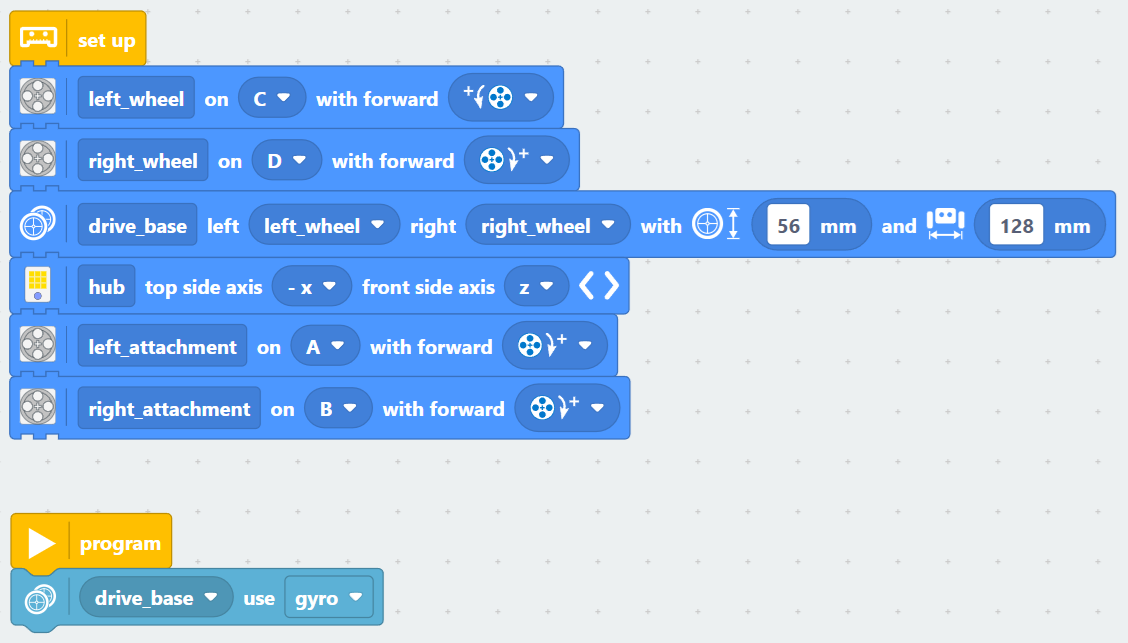
Make sure the robot configuration in your block programs matches what’s in robot.py — motor ports, directions, tire diameter, and axle track should be the same in both places.
Using M.A.R.C.U.S.? We’d Love to Hear from You!
If your team is using M.A.R.C.U.S., we’d love to hear about it! Let us know how it’s working for you, ask questions, or share your experience — open a discussion on GitHub. Hearing from teams that use M.A.R.C.U.S. also helps support our FTC team’s Reach award portfolio, so your feedback really makes a difference!
M.A.R.C.U.S. is open source and available for any FLL team to use. Check out the GitHub repository to get started!